
A Battlefield 2 mod server with administration through a web interface or Discord. The aim is to be a replacement for some of the BF2CC features and also create new behavior through modules written in C# for a better dev experience.
The game servers run OpenBF2 with its server extension, which dials WebAdmin's admin channel (TLS 1.3 with a pinned certificate and a key per server), so the game server needs no additional open ports.
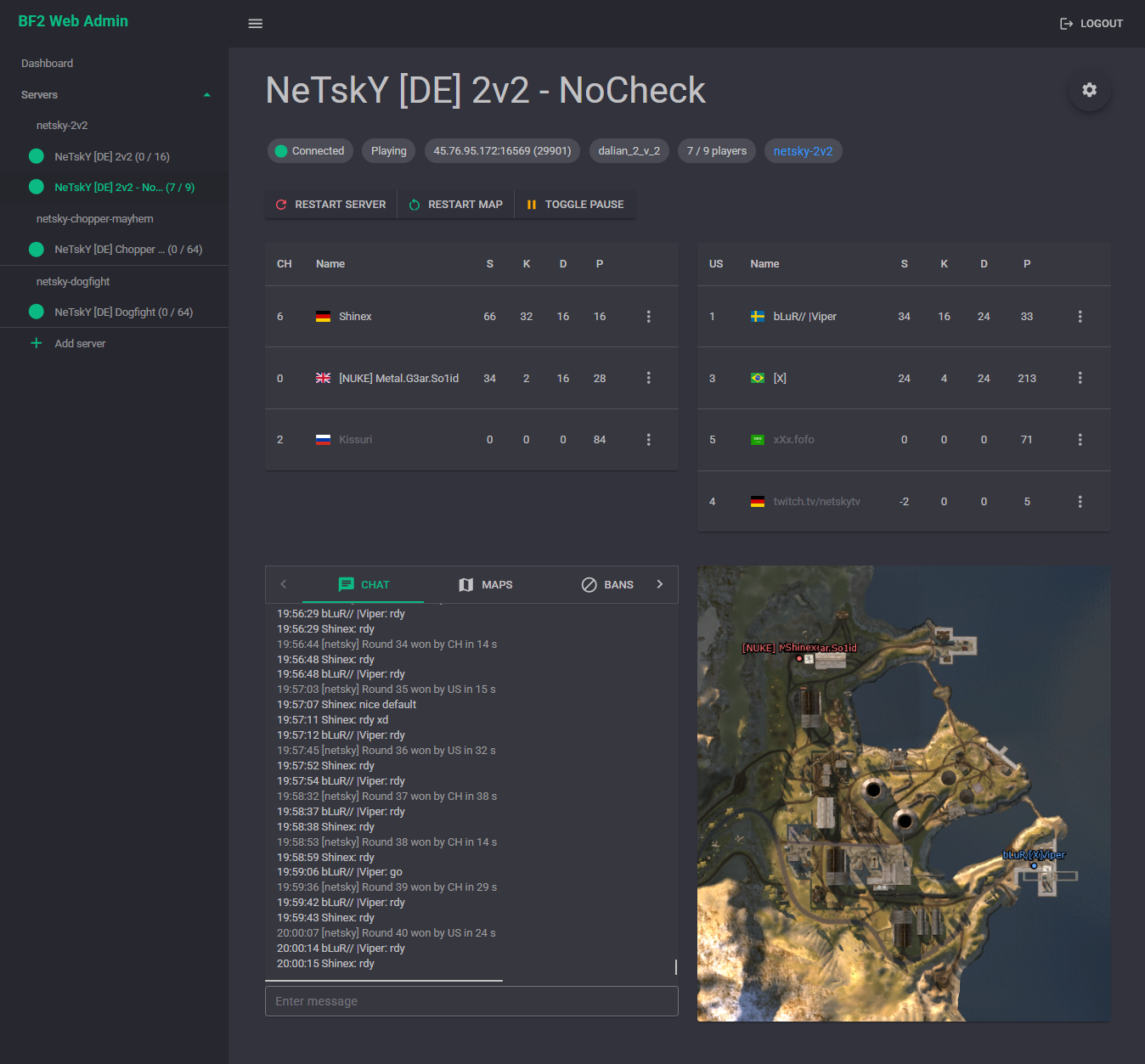
- Administration through the web UI
- Restart server, restart map, toggle pause
- Switch team, kill, warn, kick and ban
- Map selection
- Interactive chat
- Live minimap
- Ingame and custom commands available through chat
- Discord integration (optional)
- channel for player join/leave messages
- channel integration with ingame chat and administration through commands
- bot showing game status and players online in the sidebar
- Custom modules can be enabled based on the server group
- Heli 2v2 module with score tracking and QoL improvements
- Chopper Mayhem module with base protection
- Map module for server-side modding of maps by adding buildings ingame and saving/loading your work
- Log module to log chat and game events to file
- Other random ingame commands
Modifying settings in serversettings.con or maplist.con is not supported: these values belong to the game server image.
- A host running Linux or Windows. The Docker setup is tested on Linux containers
- A Battlefield 2 server running OpenBF2 with the server extension module
libserverext.so(openbf2-server-ext), loaded withopenbf2.addModDll serverext. WebAdmin needs nothing else on the server: kicks, bans and console commands go over that admin channel
Each game server dials WebAdmin's admin channel: TLS 1.3 with WebAdmin's certificate pinned by the game server, then an HMAC handshake with a key per server. docs/admin-channel.md describes it.
-
Certificate. Create it once and keep it as a secret:
docker run --rm nihlen/bf2-webadmin:<version> --admin-cert-create
It prints a base64 PKCS#12 (one line) for
ServerSettings:AdminChannel:Certificate(envServerSettings__AdminChannel__Certificate) and the pinadminCertSha256 <64 hex>for the game servers, and exits without writing anything.--admin-cert-create --pemprints PEM text (certificate and private key) instead, which the same setting also accepts. IfServerSettings:AdminChannel:CertificatePasswordis set, the output is encrypted with it.When
Certificateis set, WebAdmin never creates or writes a certificate. Without it, WebAdmin creates a PKCS#12 file atServerSettings:AdminChannel:CertificatePathon first start (default~/.local/share/BF2WebAdmin/admin-channel.pfxon Linux,%LOCALAPPDATA%\BF2WebAdmin\admin-channel.pfxon Windows). In a container that file must be on a volume: a new container would create a new certificate, and every game server's pin would stop matching.BF2WebAdmin.Server --admin-pin(ordocker run --rm -e ServerSettings__AdminChannel__Certificate=... <image> --admin-pin) prints the pin of the configured certificate. WebAdmin also logs it at startup, and stops at startup if the certificate setting is unusable. -
Port. The listener defaults to port 4310 (
ServerSettings:AdminChannel:Port, envServerSettings__AdminChannel__Port). It must not be a game server's port. -
Servers. Every game server needs a
ServerIdand anAdminKey, set in the web UI's server form or inServerSettings:GameServers.ServerIdis the game server'sadminServerId, for example1.2.3.4:16567.AdminKeyis 32 to 128 hex digits (16 to 64 bytes), for example fromopenssl rand -hex 32. A server in the database wins over the same server in the configuration. -
Game server.
serverext.cfgbeside the OpenBF2bf2binary:adminConnect bf2wa.example.org:4310 adminServerId 1.2.3.4:16567 adminKey <the same hex as the server's AdminKey> adminCertSha256 <the pin> -
Restart policy. Use
unless-stopped(Docker) orAlways(Kubernetes) for the game servers..restartserverquits the game server cleanly with exit code 0, soon-failurewould leave it stopped. -
Database. SQLite, Postgres or SQL Server:
ConnectionStrings:BF2DBandDatabase:Provider(sqlite,postgres,sqlserver), see docs/database.md. WebAdmin migrates all three at startup, an existing SQL Server database too. On SQL ServerServer.ServerIdisnvarchar(20), so anadminServerIdcan have at most 20 characters. -
Logins.
DataProtection:KeysPath, a directory on a volume, keeps the keys that protect the login cookies, so logins survive a new container. Without it everyone logs in again after a deploy. -
Optional settings.
ServerSettings:ChatPrefixis the name in brackets before WebAdmin's chat lines (defaultnetsky, empty for none).Discord:GodUserIdslists the Discord users whose chat commands in a bot's admin channel run at God level (everyone else there runs them at Admin level; unset, it is the one user that was built in before);Discord:DebugGuildNamepicks the guild that gets the bots' debug messages.Authentication:ApiKeyis compared exactly, case included. -
Stream bot (optional).
Authentication:StreamBotKeyis the key the stream bot connects with, to/hubs/stream-botonly; see docs/stream-bot.md. -
Discord bots. A server's bot (its token in the server's settings) needs the Message Content Intent, turned on for the bot under Bot in the Discord developer portal: it reads the commands in its admin channel. Without it Discord refuses the bot's connection.
On your host you need to create docker-compose.yml, appsecrets.json and a .env file with the certificate. See the
docker compose example and replace the addresses, keys and passwords with your own.
The game server image must run OpenBF2 with the server extension and write the four admin* keys above into its
serverext.cfg; see that image's documentation.
The WebAdmin image is nihlen/bf2-webadmin on Docker Hub, built by .github/workflows/docker-image.yml for every
GitHub release. To build it locally with the .NET SDK (this also builds the web UI with npm, Node 24):
dotnet publish "src/BF2WebAdmin.Server/BF2WebAdmin.Server.csproj" -c Release -t:PublishContainer -p:RuntimeIdentifier=linux-x64Then start WebAdmin and the game servers in the directory with these files:
docker compose up -d --remove-orphansTo update the WebAdmin image, run
docker compose pulland then the up command again.
To build a self-contained app for Windows, use dotnet publish, requires .NET SDK 10
and Node 24 for the web UI.
dotnet publish .\src\BF2WebAdmin.Server\BF2WebAdmin.Server.csproj -c Release -o .\publishCreate Configuration/appsecrets.json from Configuration/appsettings.template.json, then run BF2WebAdmin.Server.exe
and navigate to http://localhost:5000.
See the docker compose example